Blog

  • 2024.09.23

    This release includes some new features, improvements, and bug fixes.

    Console

    False OTP:

    We’ve implemented metrics to track the frequency of failed OTP attempts for trailers. This enhancement helps identify trends and potential security issues, ensuring better accountability and safety. To view this, go to Metrics & Reports and select Trend View under the Security tab to see the frequency of failed OTP attempts for trailers.

    Trailers with Unauthorized Drivers:

    This feature allows us to monitor and analyze the number of trailers operated by unauthorized drivers over time. By tracking this data, we can improve fleet security and compliance. To review this, go to Metrics & Reports and select Trend View under the Security tab to analyze trailers operated by unauthorized drivers.

    Locked/Unlocked Trailer Doors:

    We’ve introduced metrics to capture and analyze the status of trailer doors (locked or unlocked). This data is crucial for improving security protocols and ensuring cargo safety. To view this, go to Metrics & Reports and select either Snapshot View or Trend View under the Security tab to analyze trailer door statuses.

    Subscription Completion Update:

    We’ve updated the payment model to align with Hub installations, ensuring smoother subscription processes and providing users with a clearer billing experience.

    Access Restriction Based on Subscription:

    This feature restricts access to specific network functionalities within the fleet management app when there is no active subscription. Controlling access to sensitive features enhances security for secure equipment, authorized tractors, and designated zones.

    SEO Enhancements:

    We’ve made crucial updates to our website’s SEO to improve visibility and searchability. These improvements are essential for attracting more users and increasing overall engagement.

    Security OTP:

    We’ve added a new section for one-time passwords (OTPs) specifically for fleet managers. This allows for secure unlocking of trailers, enhancing equipment security. To use this feature, go to the Security App and select One Time Password to view a list of all authorized equipment. Fleet managers can select equipment and generate an OTP, which drivers can use to unlock trailers via the L5’s Trailer Fob phone app.

    Metrics Updates:

    We’ve enhanced our analytics to capture detailed metrics on TMU battery levels, GPS loss instances, false PIN entries, OTP and PIN usage, and Hub connectivity issues. This comprehensive data allows for informed decision-making and continuous improvement.

    Driver App

    This release introduces a new look and significant improvements to the app’s unlocking features and overall user experience.

    New Features:

    • New Logo: Fresh branding with a new logo!
    • Name Change: “Level5 Driver” is now Admiral Go.
    • Full Redesign: Complete overhaul of the app’s UX, including smoother authentication flows and improved error handling.

    Improvements:

    • Core Unlocking Enhancements: All core unlocking features (Auto Fob, Manual Unlock, OTP Unlock, Reusable Password Unlock) have been enhanced to allow trailers sufficient time to run security protocols.
    • Technician Logging: Technicians now have better logging capabilities for diagnostics and troubleshooting.
    • Initialization Message: New snack message to keep drivers informed of app processes during initialization.

    Bug Fixes:

    • Resolved communication issues between trailers and Admiral Go.
    • Fixed a crash issue when Bluetooth was turned off.
    • Fixed crashes caused by multiple Auto Fob interruptions on Android devices.

  • 2024.10.28

    This release includes some new features, improvements, and bug fixes.

    Console

    Door FLT

    This feature allows users to create, read, update, and delete reusable passwords for doors installed on equipment, enhancing security and accessibility. To use this feature, go to the Security App and select Door FLT to see a list of all authorized equipment. You can then select the equipment and create, update, or delete the door fleet password.

    Door OTP

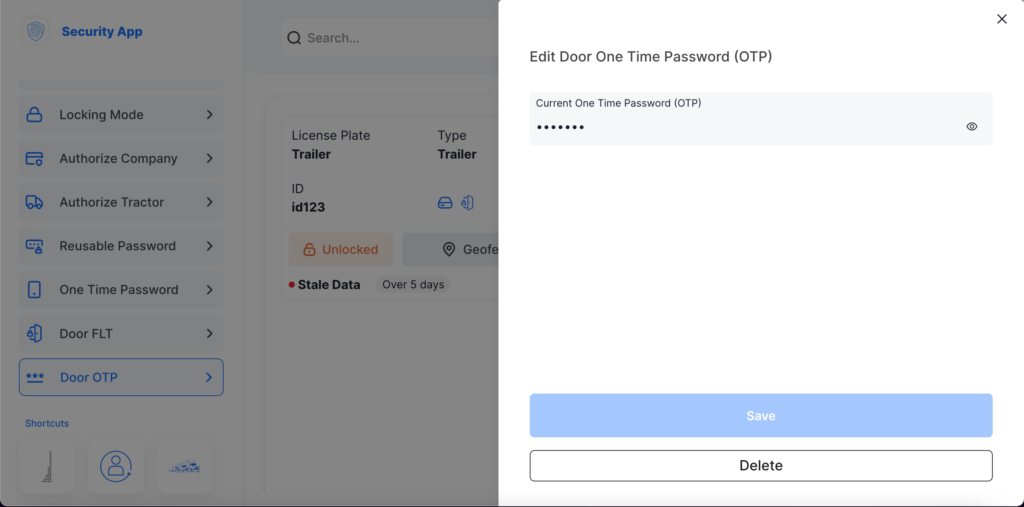
    This feature allows users to manage one-time passwords (OTPs) for doors on equipment. This feature supports creating, reading, updating, and deleting OTPs, providing a secure access method. To use this feature, go to the Security App and select Door OTP to see a list of all authorized equipment. You can then select the equipment and create, update, or delete the door one-time password.

    Equipment History

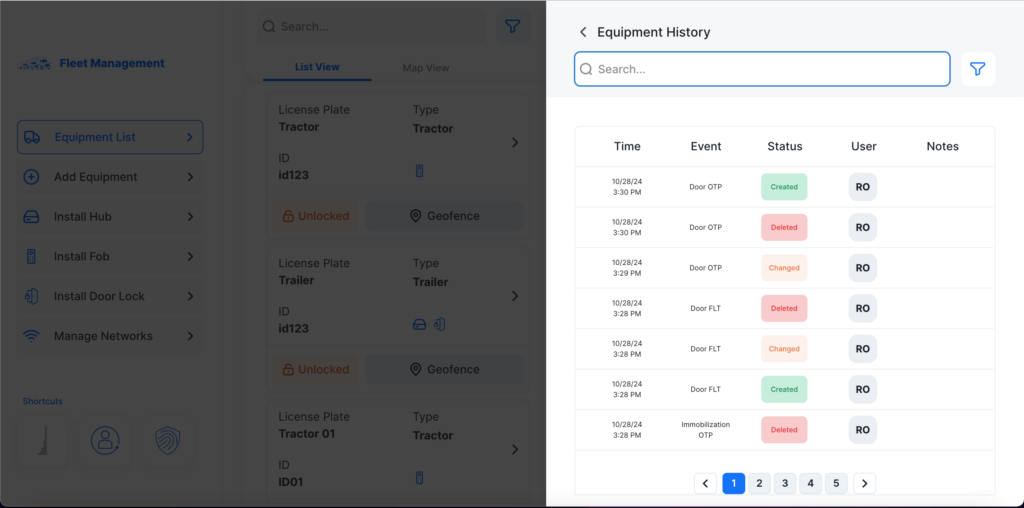
    This enhancement enables the Fleet App to retrieve and display the history of events related to each piece of equipment, offering users better visibility into usage and security activities. To check the equipment history, go to the Fleet App and select the desired equipment in the Equipment List. Click on the View History button to see its history.

  • Level5Freight Terms of Service

    Last updated: Aug 6, 2025.

    Welcome to Level5Freight, provided by Level5Fleet Corp. (“we,” “us,” or “our”). By using our software platform (the “Platform”), you (“User” or “you”) agree to these Terms of Service (“Terms”). Please read them carefully.

    1. Acceptance of Terms

    By registering for or using Level5Freight, you agree to be legally bound by these Terms. If you do not agree, you may not access or use the Platform.

    2. Scope of Services

    Level5Freight is a technology platform designed to facilitate automated freight matching between shippers and carriers, providing TMS and WMS tools, real-time tracking, and built-in security features.

    Level5Freight:

    • Facilitates secure communication and transaction coordination between shippers and carriers.
    • Enables users to set their own pricing terms.
    • Provides data points on licensing, insurance, and authority for informational purposes only.
    • Automates matching based on shipper-defined criteria.

    3. What We Do Not Do

    Level5Freight explicitly is NOT:

    • A freight broker, carrier, or freight forwarder.
    • Responsible for negotiating, dispatching, or controlling freight.
    • Responsible for handling or processing payments.
    • Issuing, guaranteeing, or assuming liability for Bills of Lading.

    4. Account Registration

    To use the Platform, users must create an account providing accurate and current information. Users are responsible for maintaining the confidentiality of their account credentials and for all activities associated with their accounts.

    5. Fees and Payment

    Level5Freight charges usage-based fees linked to platform tools (e.g., load creation, security tracking). Fees are clearly indicated at the time of usage. Payments are handled directly between shippers and carriers. We do not process or intermediate financial transactions.

    6. User Responsibilities

    Users agree to:

    • Provide accurate information and update it promptly.
    • Verify independently all documents, licenses, insurance, and credentials.
    • Assume full responsibility for decisions made based on data provided via the Platform.

    7. Communication and Security

    We provide secure, in-platform communication tools designed to reduce theft and fraud. While users may communicate externally, Level5Freight expressly disclaims liability for outcomes resulting from off-platform interactions.

    8. Data and Privacy

    Level5Freight handles personal data according to applicable privacy laws. By using our services, you consent to our Privacy Policy.

    9. Intellectual Property

    Level5Freight software and its components are proprietary property of Level5Fleet Corp. You may not copy, modify, distribute, or reverse-engineer any software or system features.

    10. Disclaimer and Limitation of Liability

    Level5Freight services are provided “as-is” without warranties of any kind. We do not guarantee uninterrupted or error-free service. To the maximum extent permitted by law, Level5Fleet Corp. shall not be liable for any indirect, incidental, special, consequential, or punitive damages arising from your use of the Platform.

    11. Indemnification

    You agree to indemnify and hold Level5Fleet Corp. harmless from claims, damages, liabilities, losses, or expenses arising from your use of the Platform or violation of these Terms.

    12. Termination

    We reserve the right to suspend or terminate your account at our discretion, particularly for violation of these Terms, fraudulent activities, or unauthorized use.

    13. Governing Law

    These Terms are governed by and construed according to the laws of British Columbia. Any disputes arising out of these Terms will be resolved exclusively in the courts located in British Columbia.

    14. Changes to These Terms

    We reserve the right to update these Terms at any time. Changes will be effective upon posting to the Platform. Continued use of the Platform constitutes acceptance of the revised Terms.

    By clicking “Accept” or otherwise using Level5Freight, you confirm your understanding of and agreement to these Terms.

  • How Admiral Works

    What Admiral Offers

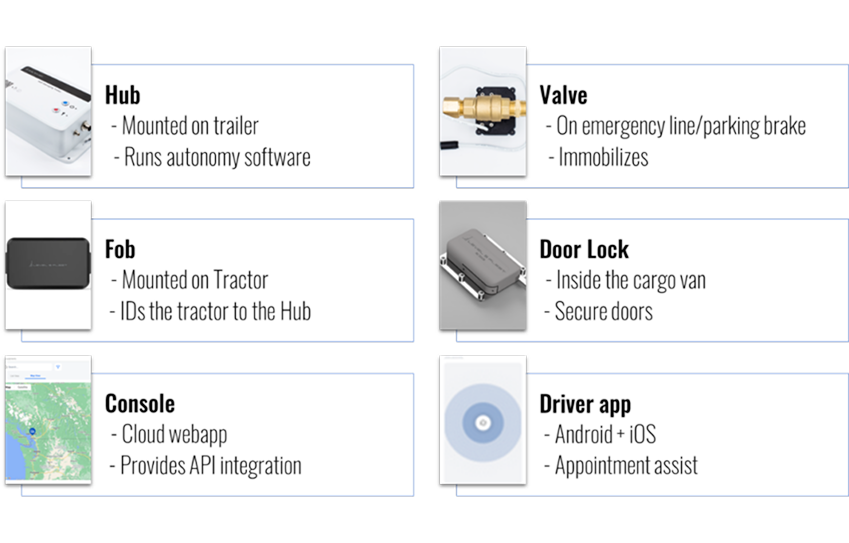
    Admiral suite consists of the Hub, Valve, Fob, Lock, Console and Driver App. Applications include preventing cargo or whole trailer theft, pilferage, shipment misdirection, fictitious pickups, mis-pulls due to appointment errors, preserving food integrity in Reefers, BOL virtual sealing for operational efficiency, enforcing trailer docking processes to prevent injuries, enforcing trailer holds for maintenance, etc.

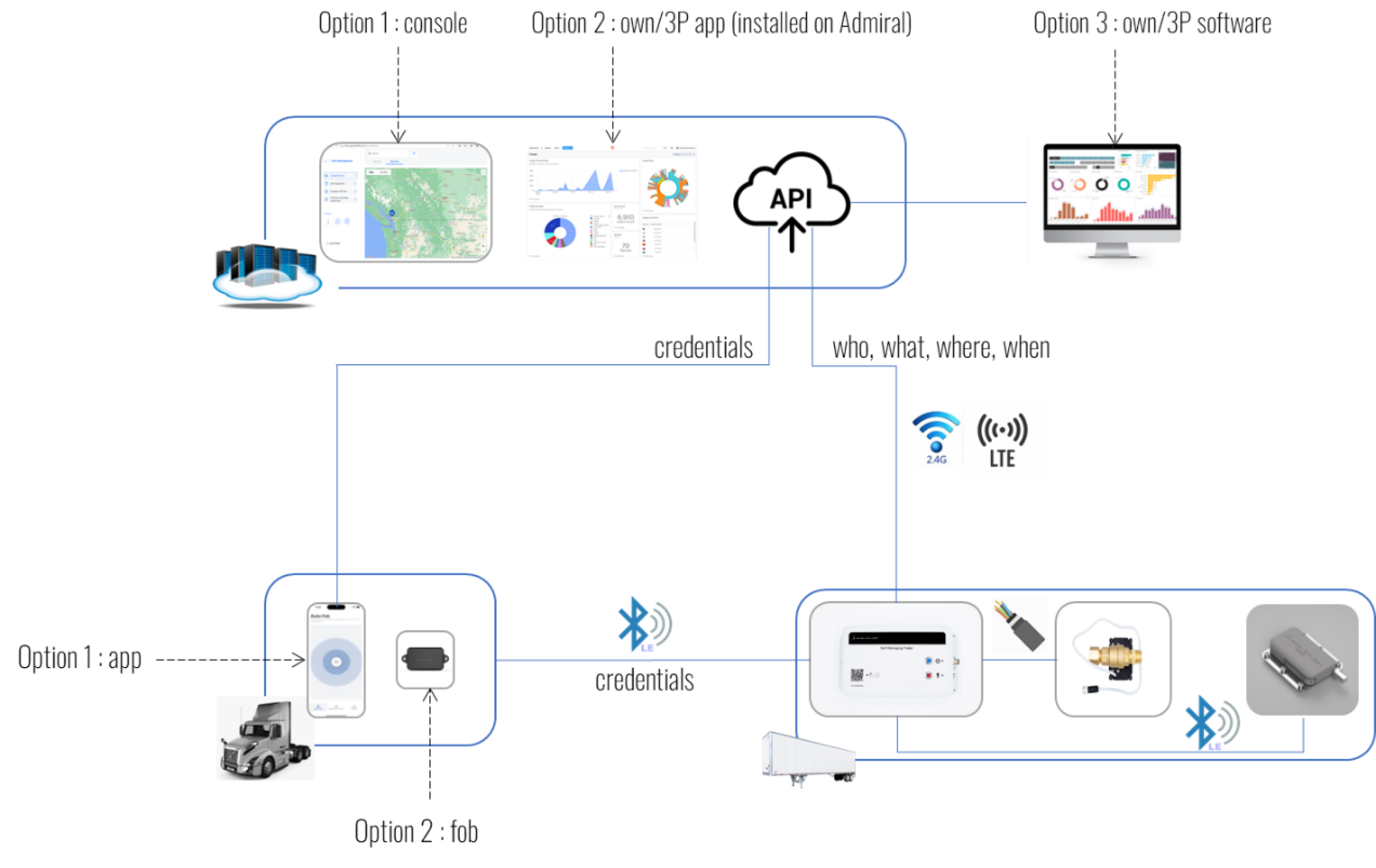
    The console is a web application for operators to set access parameters. Synchronous REST APIs and asynchronous notifications provide integration point with your logistics software. The Hub is an edge computer installed on the trailer, it’s the brain behind the autonomy, controlling access based on preset parameters. The Hub additionally provides trailer and load-integrity visibility via GPS and vibration sensors. The Valve ensures the trailer remains immobile until an authorized driver is verified, by controlling the trailer’s spring brakes. The Lock secures cargo doors, opening only within designated geofences and times, with built-in smoke detection for emergency situations.

    The Fob is A tractor-installed device that communicates with the Hub to authorize trailer access. Unlike a car’s fob, Admiral’s Fob is permanently installed on the tractor. Further, unlike a car’s fob, Admiral’s Fob does not always unlock a trailer – it can only unlock if the trailer allows it. The mobile app offers “keyless entry” for the driver as an alternative to Fob. The app behaves the same as phone-based car keyless system. Since a driver is not allowed to take any trailer, the Driver App has Augmented Reality features that shows the driver which trailer they can hook to, as well as information on pre-trip inspections to assist with pre-trip.

    How It Works

    Setting up Admiral is straightforward:

    • Operators input access parameters into the Admiral Console, defining which drivers can access specific trailers, when, and where, and who can open doors.
    • The Hub, installed on the trailer, downloads these parameters and listens for signals from the Fob or Driver App to authenticate access.
    • Upon successful verification, the Valve activates or deactivates as needed. The door Lock activates when in designated safe-zones during specified times.
  • Admiral Access

    Your Digital Key to Unlock and Manage Fleet Security

    Available on Google Play and App Store, Admiral Access is a powerful mobile application that acts as a secure, keyless entry system for fleet drivers. It enables hands-free control of trailer immobilization and cargo door locks using Bluetooth Low Energy (BLE), eliminating the need for physical contact or key fobs.

    Why Use Admiral Access?

    Admiral Access replaces the need for a tractor-mounted fob. If a tractor is already equipped with one, the app is optional—but for all other use cases, especially for flexible fleets and 3P drivers, it is essential.

    Once authorized through Admiral Control, the web-based fleet management platform, a driver can unlock specific equipment, entire fleets, or assets within defined geofences or time windows. Operators can also extend temporary or limited access to third-party carrier employees for load handoffs and yard operations.

    Key Features

    Hands-Free Unlocking

    Drivers can unlock immobilizers and cargo doors without touching their phones. When approaching the assigned trailer, Admiral Access automatically communicates via BLE and unlocks the trailer if authorization is valid.

    Emergency Access

    In cases where BLE auto-unlock is not possible, the app provides two alternative secure methods:

    • One-Time Password (OTP) – For single-use entry.
    • Fleet Password – A reusable emergency code managed by the fleet operator.

    Manual Locking

    Drivers can manually lock the trailer through the app, ensuring they retain control even when automatic locking is not required.

    AR Trailer Locator

    Using augmented reality, the app helps drivers quickly locate their assigned trailer in busy yards. Simply point the phone camera, and the app overlays visual indicators on-screen to guide the driver.

    Pre-Trip Inspection

    Admiral Access includes a digital pre-trip inspection form. Drivers can complete and submit the form within the app and view the latest inspection timestamp before departing.

    WiFi Configuration

    The app can also be used to set up WiFi credentials on Admiral equipment. This feature is especially useful when cellular connectivity is unavailable and no emergency access codes have been set—ensuring that remote or offline recovery is still possible.

    Logging In

    After downloading the app, drivers should log in using the same credentials used for Admiral Control. If no account exists, the app will guide users to create one through the Admiral Console web portal.

    Requirements


    Admiral Access is a secure, BLE-based digital key solution that gives drivers confidence, flexibility, and autonomy when operating across complex logistics networks. Whether unlocking cargo doors, entering a secure yard, or simply locating the right trailer, Admiral Access puts the power of the fleet in the driver’s hands—safely and reliably.

  • Admiral – Fleet Management Dashboard

    As the name suggests, the Admiral Console is indeed the point of command and control. This dashboard is a complete management system for all your fleet. The Admiral Console enables you to create your company profile which includes all your users or employees. Creating and managing your fleet of trailers can also be done once your company profile has been set up. You can also manage the authorization of your trailers anywhere and anytime.

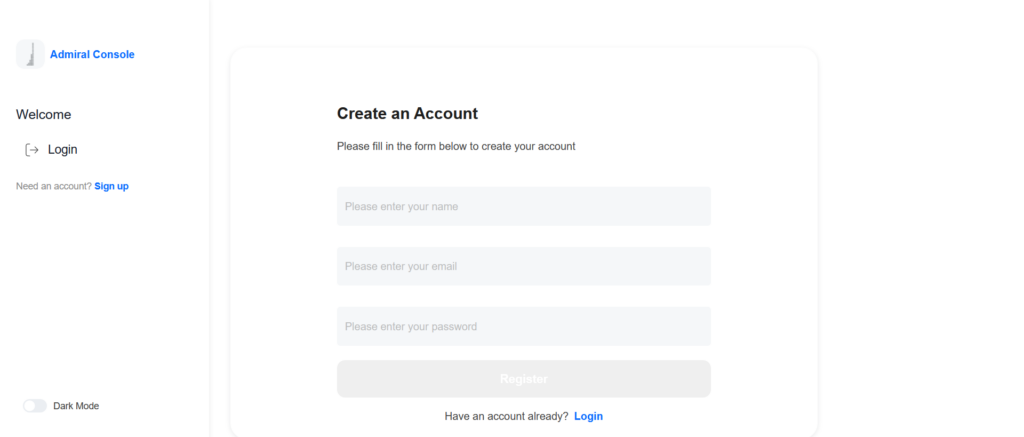
    To get started, navigate to the Admiral Console website. The landing page greets you by prompting you to sign in but before that, go ahead and create an account by signing yourself up.

    Sign up page

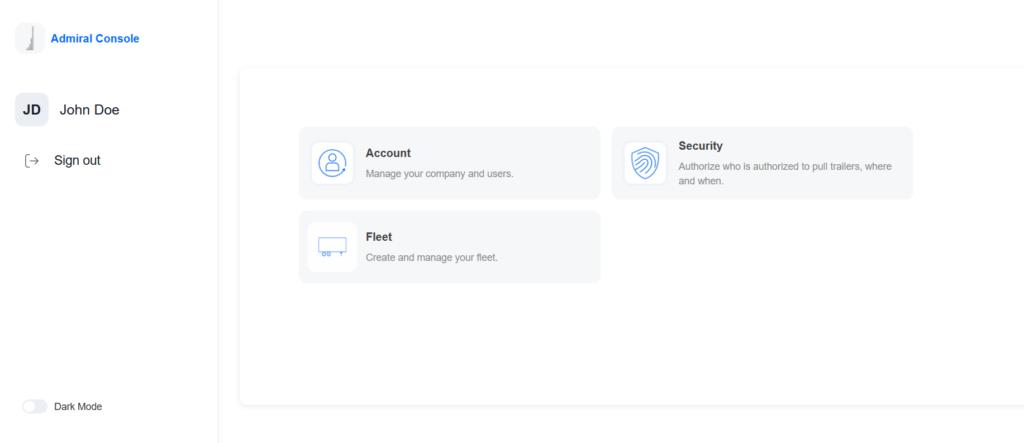
    Now that an account has been created, it’s time to go ahead and setup the company details. When logged in, the dashboard contains a list of options to choose from: managing your company and users, authorization of trailer pickup, and creating or managing your fleet as can be seen in the figure below.

    Admiral Dashboard

    Creating a Company

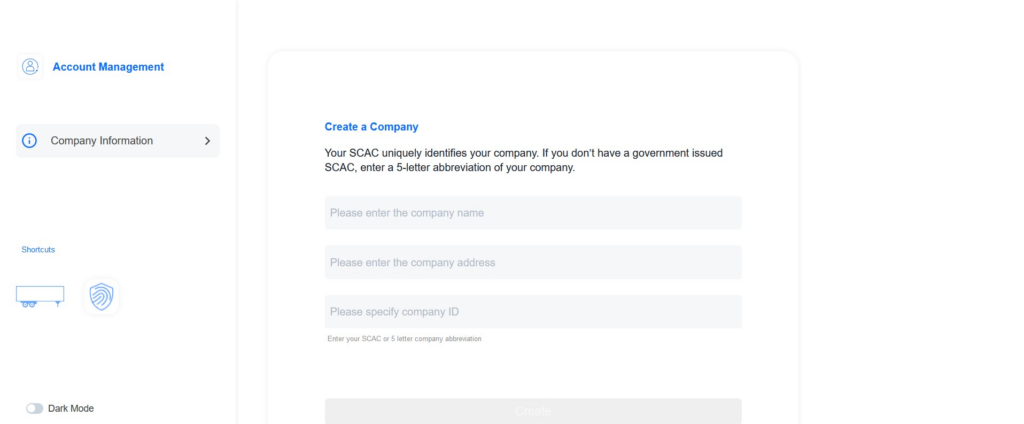
    From the dashboard, navigate to Account and complete the short form by entering your company details as instructed. A small note at the top of the form provides an alternative in case some of your company information is not available, as shown in the figure below.

    Providing the Standard Carrier Alpha Code (SCAC) or in the case of not having a government issued SCAC, a 5-letter abbreviation is necessary because it uniquely identifies your company and is important when it comes to managing your fleet and the authorization of your users.

    Company Creation

    Bear in mind this step is important before moving onto authorizing any of your users or employees to interact with your fleet or even managing your fleet. Once this step has been completed, you can proceed to creating your fleet and begin managing it.

    Trailer Authorization

    The authorization of accessing and controlling your fleet is achieved under the Security module of the console. This is where you or your users can securely arm or disengage the Hub with your tractor.

    Fleet Management

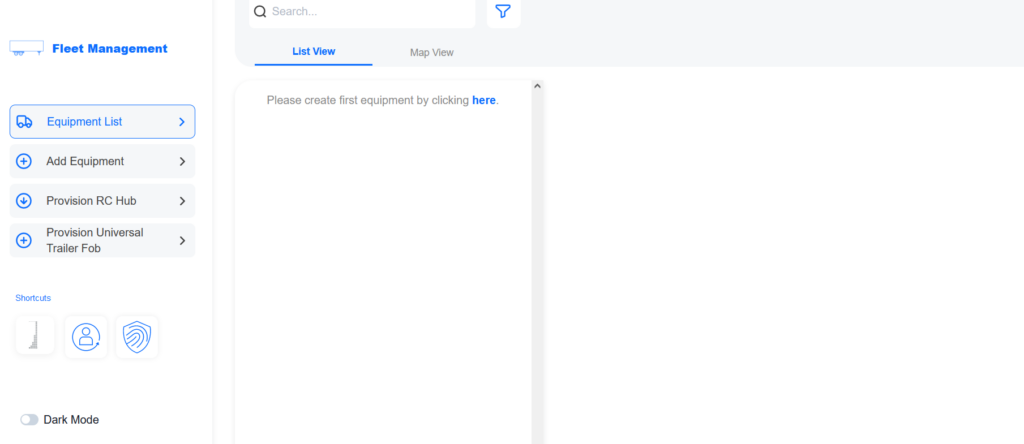
    In this section of the Admiral Console, you can view the list of equipment that you currently have. Initially, after the installation of the Hub on your trailer, this list is going to be empty and as your fleet grows, so is the equipment list. All of those equipment and details can conveniently be viewed in the Equipment List under this section.

    Fleet Management

    This is also where the Hub provisioning process is executed. Start by adding your vehicle details by clicking on the Add Equipment button and filling in the form. Once your trailer or tractor details have been added, the Hub installed on the specific vehicle is associated to that vehicle. Upon successful provisioning, the tracking and security management of your vehicle and the fleet at large becomes a straightforward task.